

How to Make a GIF on iPhone
Your iPhone is a surprisingly capable GIF-making machine. Between Live Photos, the built-in Photos app, and a handful of dedicated tools, you can go from raw video to a shareable animated GIF without ever touching a desktop computer. Here is every method worth knowing, from the absolute quickest to the most flexible.
The Quickest Method: Live Photos
If you shoot with Live Photos enabled — the default on most iPhones — you already have a library of potential GIFs waiting to be unlocked. Open any Live Photo in the Photos app and swipe upward on the image. A row of effect options appears at the bottom: Live, Loop, Bounce, and Long Exposure. Tap Loop and the photo will play as a repeating animation. Tap Bounce and it plays forward then backward continuously. Share it directly from the share sheet and most apps will receive it as a GIF or animated image.
The one caveat is that what iOS shares is technically a Live Photo or HEIC animation, not always a pure .gif file. For platforms that need an actual GIF — email clients, certain websites, Discord — you will want to use one of the conversion approaches below.
Converting a Video Clip to a GIF
Open Safari on your iPhone and go to the GIFDB MP4 to GIF converter. Tap the upload button and choose a video from your Camera Roll. The tool lets you set a start time and end time, so you can isolate just the three seconds you actually want. Adjust the output resolution — 480p is usually the sweet spot between quality and file size on mobile — then tap Convert and save the resulting GIF to your Photos. The whole process takes under a minute for a short clip.
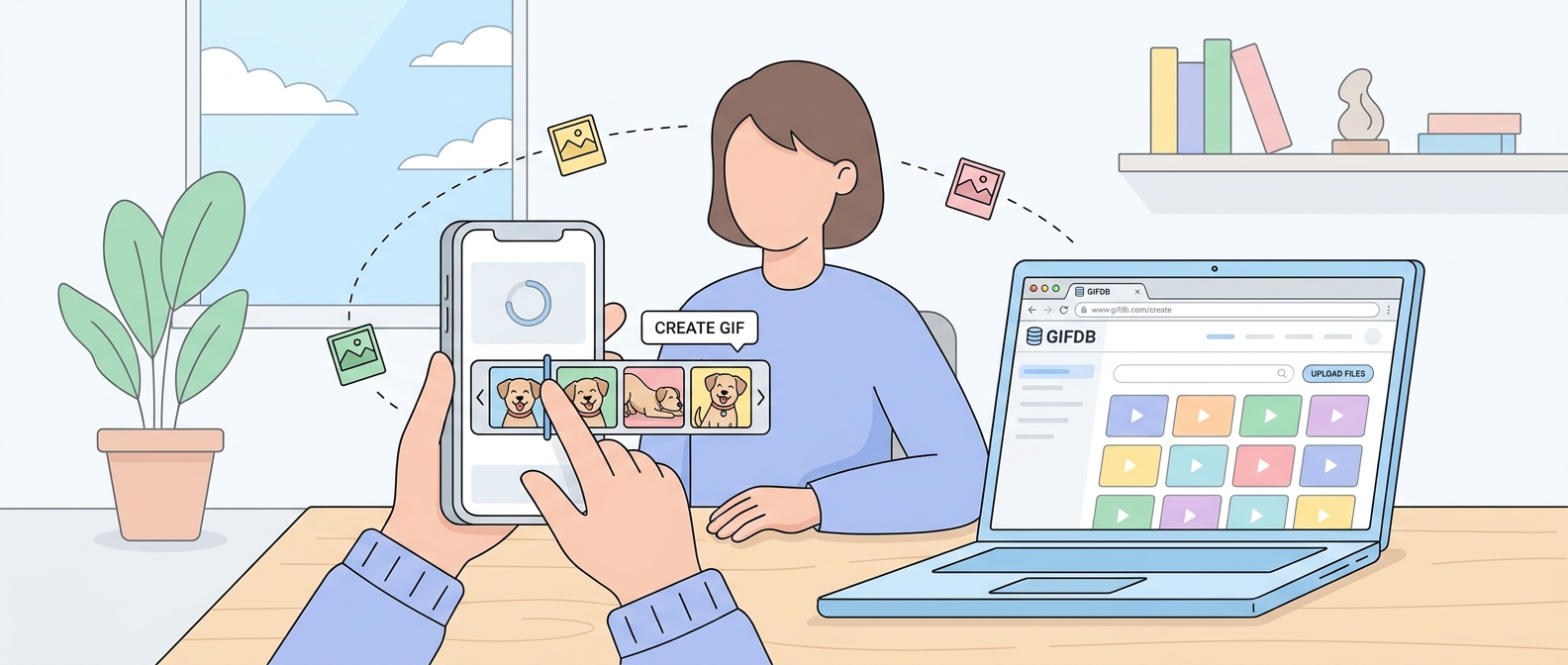
If you would rather work offline or want more frame-level control, apps like Giphy Cam, ImgPlay, or GIF Maker (available on the App Store) give you a timeline you can scrub through manually. The general workflow is: open the app, import your video from the Camera Roll, trim the clip to the section you want, choose your frame rate and resolution, preview, then export to your photos or share directly.
Making a GIF from Multiple Photos
Animating a sequence of still photos on iPhone is straightforward with a third-party app. ImgPlay and Giphy Cam both handle this well. Open the app, choose the option to create from photos, select your images in the order you want them to appear, then set how long each frame should display. A setting between 100 and 300 milliseconds per frame gives a natural-feeling animation for most subject matter. Preview the result, adjust the timing if anything feels too fast or too slow, and export.
For a simpler route that works in the browser, GIFDB's GIF maker accepts image uploads from your iPhone's camera roll via Safari. Select your photos, arrange them in order, set the frame delay, and download. No app installation required.
Capturing Your iPhone Screen as a GIF
iOS does not natively export screen recordings as GIFs, but the workaround is simple. Use the built-in screen recorder (swipe into Control Center, tap the record button) to capture what you need, then convert the resulting .mov file using the MP4 to GIF tool mentioned above. A two-step process, but fast.
Getting the Settings Right
Frame rate and resolution are the two levers that most affect how your GIF looks and how large the file is. For something you plan to share in a chat or post on social media, 480 x 480 pixels at 15 frames per second produces a file that is usually under 5 MB and looks sharp on phone screens. If you need higher quality — for a portfolio or a website — bump up to 720p and 24 fps, but expect a file that might reach 10–15 MB.
Keep the GIF under 8 seconds whenever possible. Longer loops are harder to compress without visible quality loss, and viewers tend to engage more with short, punchy animations anyway.
Sharing Your iPhone GIF
Once your GIF is saved to the Camera Roll, sharing is straightforward. In Messages, tap the attachment icon and select your GIF from Photos — it will animate in the conversation. On Instagram, use it as a Story or Reel. For WhatsApp, attach it as a photo or document. Discord and Slack both play GIFs inline when you attach them as files.
For more ideas on what to send and when, browse the funny GIF collection or check out birthday GIFs for ready-made options when you just need something fast. And for the full picture on GIF creation across every device and platform, the main how to make GIFs guide has everything in one place. If you also want to make your GIF file smaller before sharing, see the guide on reducing GIF file size — it covers compression tricks that preserve quality while cutting the file down significantly.