

How to Send GIFs on Discord
Discord might be the most GIF-friendly platform of all. GIFs play inline in every channel and DM, the file size limit is generous, and the server culture around reaction GIFs is rich. Here is how to use GIFs in Discord effectively, from uploading your own to setting up animated emoji.
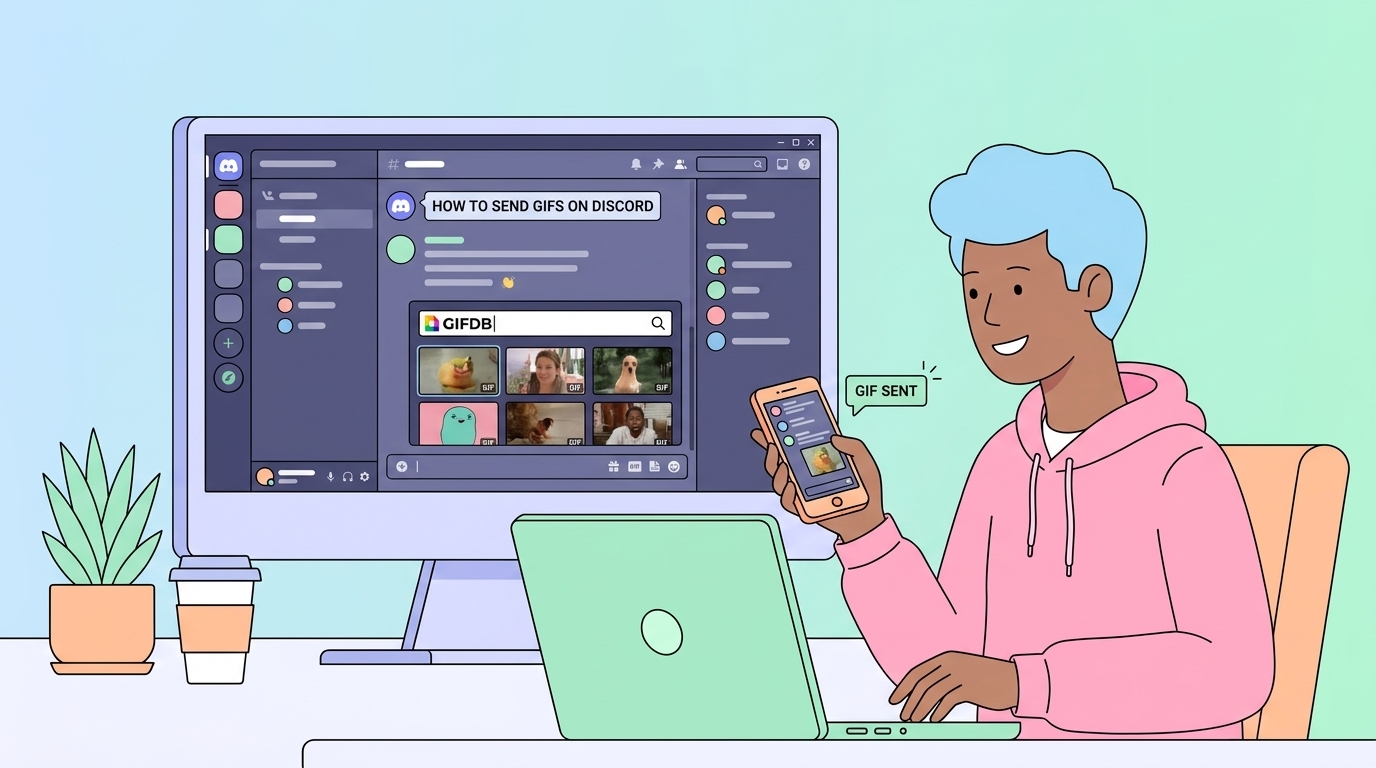
Sending a GIF File Directly
Click the plus icon to the left of the message bar and select Upload a File, or simply drag a GIF file from your desktop into the Discord window. Discord will show a preview before you send. Click the arrow button to post, and the GIF animates inline in the channel or DM immediately. Standard Discord accounts have an 8 MB file size limit per attachment. Nitro subscribers can upload files up to 50 MB, which covers virtually any GIF you would reasonably want to share.
If your GIF is over 8 MB, the guide on reducing GIF file size covers the fastest ways to bring it under the limit. Reducing canvas dimensions from 720p to 480p is usually the quickest fix.
Using Discord's GIPHY Integration
Discord has a built-in GIF picker. Click the GIF icon in the message bar (it looks like a small GIF label) to open a GIPHY-powered search panel. Type your search term, browse the results, and click any GIF to send it instantly. Discord also shows trending GIFs and category tabs in the picker, so you can browse by mood even without a specific search in mind. This approach bypasses the file size limit entirely since Discord hosts the content.
Using GIF Reactions
Discord supports GIFs as server emoji for Nitro-enabled servers. If a server has animated emoji uploaded, you can use them as message reactions. To react with a GIF emoji, hover over a message, click the emoji reaction icon, and search or browse to the animated emoji you want. This is particularly common in gaming and fandom communities where custom animated emoji are part of the server identity.
Setting an Animated Profile Picture or Banner
Discord Nitro allows animated profile pictures and banners. Go to User Settings, then My Account, and click Edit on your profile avatar. Upload a GIF file and Discord will use it as your animated avatar — it plays in DM lists and server member panels. The same option exists for banners in the Profile section of settings.
Posting GIFs in Discord Bots
Many Discord bots support GIF commands — for example, typing /giphy [search term] in supported servers pulls a GIF from GIPHY and posts it. Bot behavior varies by server, so check your server's available slash commands or bot documentation. For custom bot-triggered GIFs, server administrators can configure GIF responses using bot platforms like MEE6 or Carl-bot.
Best GIFs for Discord
Reaction GIFs are the backbone of Discord conversation. GIFDB's funny collection, anime GIFs, and cat GIFs have options for almost any conversational moment. Save a GIF from GIFDB to your desktop, then drag it into Discord to share. For the full guide to sharing GIFs across all platforms, see the main how to share GIFs guide. For sharing on Reddit, another platform with a strong GIF culture, see how to post GIFs on Reddit.