

How to Make a GIF in Canva
Canva is best known as a design tool, but it handles animated GIFs surprisingly well. If you already use Canva for social media graphics, presentations, or marketing materials, you can export any design as an animated GIF without touching any other software. Here is exactly how the process works and how to get the best results.
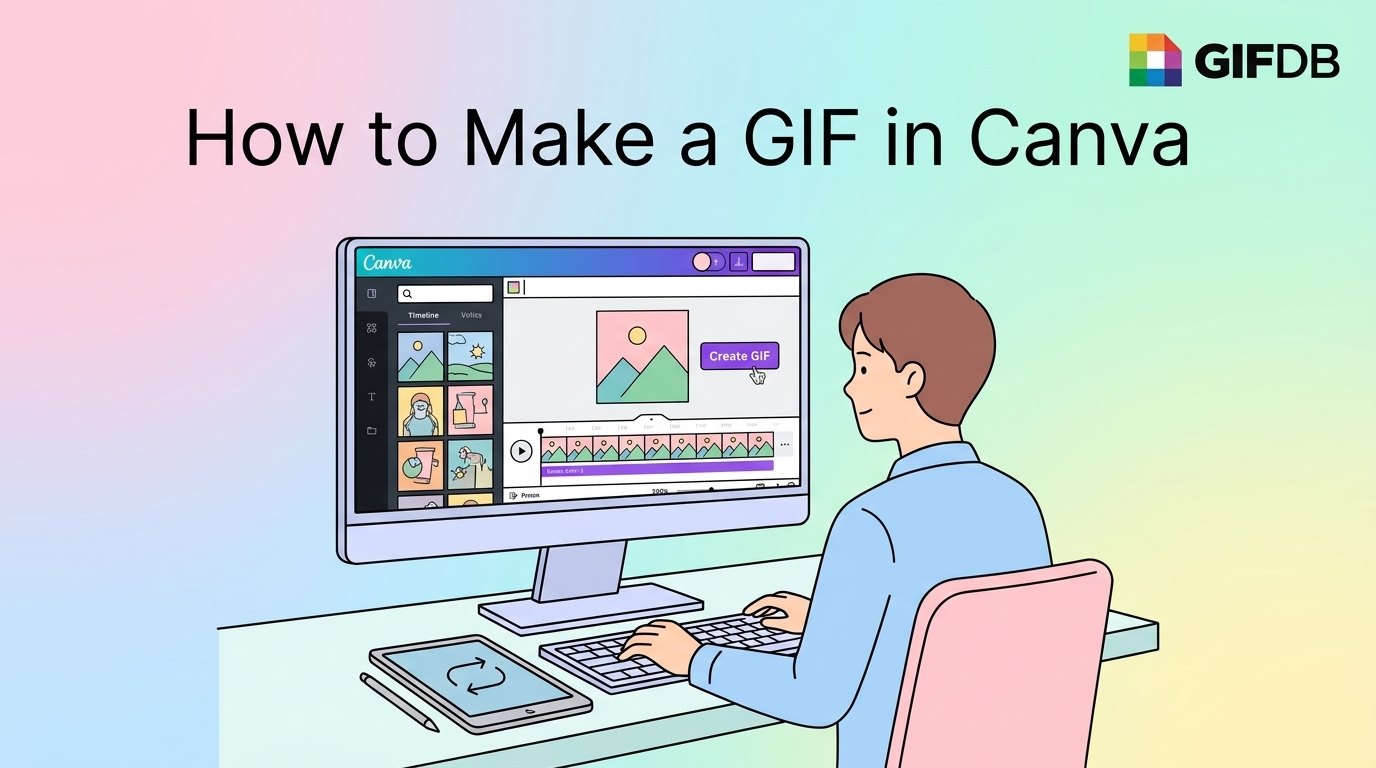
Animating a Design in Canva
Start by opening or creating a design in Canva. Any canvas size works, but square (1:1) or 16:9 widescreen are the most shareable shapes for GIFs. Once your design is ready, look for the Animate button near the top of the editor — it sits in the toolbar alongside the other editing options. Click it and a panel opens on the left side of the screen showing all of Canva's animation presets.
The Page animations tab applies a single animation style to everything on the canvas at once: options like Fade, Rise, Pan, Drift, and Breathe control how elements enter the frame or move during the loop. The Element animations tab gives you per-object control — you can set one layer to fade in while another slides up independently. Click any preset to preview it immediately on the canvas. Most Canva GIFs work best with simple, clean animations like Fade or Rise rather than complex multi-directional effects that can look chaotic when looped.
Downloading as a GIF
When the animation looks the way you want it, click the Share button in the top-right corner of the screen, then select Download. In the file type dropdown, change it from PDF or PNG to GIF. If you are on Canva Free, GIF export is available, though some premium animation presets require Canva Pro. Click Download and the file saves to your computer or, on mobile, to your camera roll.
One important note: Canva only exports single-page designs as GIF. If your design has multiple pages, only the first page will be included in the GIF export. For multi-page animations, you would need to export each page separately as a GIF, then combine them using an external tool like Ezgif's GIF combiner.
Turning a Canva Video into a GIF
If you have a Canva design that includes video elements or you have used Canva's video editor to build an animation, you have another route. Download the design as an MP4 first — the video export from Canva is higher quality than the GIF export for motion-heavy content. Then convert that MP4 to a GIF using the GIFDB MP4 to GIF converter. This two-step approach usually produces a sharper, better-compressed result than exporting directly as GIF from Canva.
Canva for GIF Presentations and Social Posts
Where Canva really shines for GIF making is branding and social media content. You can animate a logo reveal, a promotional banner, a quote card, or a product showcase and export it as a GIF that loops cleanly and looks professional. The templates Canva provides are a useful starting point — search for "animated" in the template library and you will find dozens of designs already set up with motion effects. Swap in your own text, colors, and images, then export.
File Size Considerations
Canva's GIF exports tend to be on the larger side because the tool prioritizes visual quality. For a design with a lot of motion or bright colors, the GIF file might come out at 10 MB or more. That is fine for a website but too large for most social media platforms. If you need a smaller file, import the Canva design as a video first, then use the MP4 to GIF converter with a lower resolution setting. Alternatively, simplify the animation — fewer moving elements and a shorter loop duration both reduce file size significantly.
For the full overview of GIF creation methods across every tool and platform, visit the main how to make GIFs guide. If you want to add custom text captions to your Canva GIF after export, the guide on adding text to a GIF covers that workflow. And if you need to reduce the final file size, the GIF compression guide has the techniques that work without visibly degrading quality.