

How to Make a GIF in Photoshop
Photoshop is the gold standard for GIF creation when quality really matters. Its Timeline panel gives you precise control over every frame, the export settings let you balance file size against visual quality, and the whole workflow is non-destructive — meaning you can go back and tweak anything without starting over. If you have Photoshop, here is how to use it to make great animated GIFs.
Importing a Video as Frames
The fastest way to build a GIF in Photoshop is to let it convert a video for you. Go to File, then Import, then Video Frames to Layers. Select your source video — MP4 and MOV both work — and Photoshop opens a dialog where you can set which range of frames to import. You can choose to import every frame, every other frame, or every Nth frame to control how many layers you end up with. Importing every frame from a 10-second clip at 30fps gives you 300 layers, which is too many; setting it to every other frame or every third frame keeps the layer count manageable while still producing smooth animation.
Check the "Make Frame Animation" box before clicking OK. Photoshop will import the frames and automatically set up the Timeline for you, with each video frame becoming one animation frame.
Building an Animation from Layers
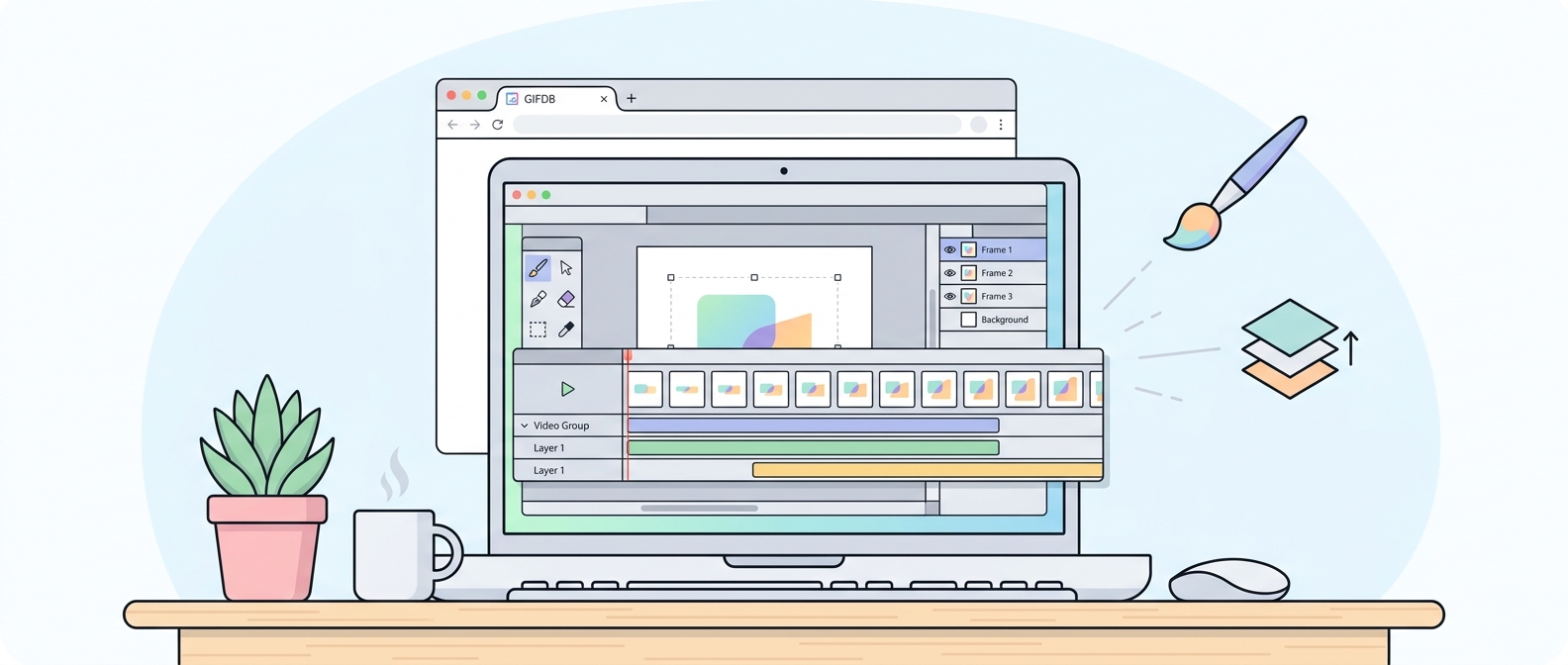
If you are working from scratch — designing individual frames or animating a graphic — the layer-to-frame approach gives you more creative control. Create your base canvas and then build each frame of the animation as a separate layer, naming them clearly (Frame 1, Frame 2, and so on). Once your layers are ready, open the Timeline panel from the Window menu. Click the "Create Frame Animation" button in the center of the panel. Then open the Timeline menu (the icon at the top right of the panel) and choose Make Frames from Layers. Photoshop converts each visible layer into one frame of the animation.
From there, click on each frame in the Timeline to select it, and use the time indicator below the frame thumbnail to set how long that frame displays. Common values are 0.1 seconds for fast animation, 0.5 seconds for a medium pace, and 1 second or more for slow, deliberate transitions. To preview the animation, click the Play button at the bottom of the Timeline.
Using Tweening for Smooth Transitions
Tweening tells Photoshop to automatically generate intermediate frames between two keyframes, which produces much smoother animation than jumping directly from one state to another. Select a frame in the Timeline, then open the Timeline menu and choose Tween. Set how many frames you want Photoshop to insert, choose which properties to animate (position, opacity, effects), and click OK. This is especially useful for fade-in, fade-out, and sliding effects.
Exporting as GIF
When your animation is ready, go to File, then Export, then Save for Web (Legacy) — this dialog gives you the most control over the final GIF. In the top-right area of the dialog, select GIF from the format dropdown. Set Colors to 256 for the full palette, or lower it to 128 if you need a smaller file and can accept slightly reduced color accuracy. The Dither setting helps blend colors that the limited palette cannot represent exactly — Diffusion dithering usually looks best. Under Looping Options at the bottom left, choose Forever to make the GIF loop continuously.
Watch the file size indicator in the bottom-left of the dialog as you adjust settings. Aim for under 5 MB for social media, under 10 MB for email, and under 20 MB for web pages where load time is less critical. If the file is too large, try reducing the canvas size with Image Size before exporting, or reduce the number of frames by deleting every other one in the Timeline.
Reducing File Size Without Losing Quality
The most effective way to shrink a Photoshop GIF is to reduce the canvas dimensions. A GIF that is 640 pixels wide rather than 1280 will be roughly one-quarter the file size, because pixels scale quadratically. The second most effective lever is frame count — fewer frames means a smaller file. Delete frames from the middle of the Timeline that are nearly identical to their neighbors; the animation will still look smooth as long as you are not removing frames at peak-motion moments. Finally, lowering the color palette from 256 to 128 can save another 10–20% with minimal visible impact on most GIFs.
Saving and Using Your GIF
After exporting, open the GIF in a web browser to verify that it loops correctly and plays at the speed you intended. Browser preview is more reliable than Photoshop's own preview for catching timing issues. Once confirmed, the file is ready to upload anywhere — GIFDB's platform if you want to share it there, or social media, email, or messaging apps.
For more about making GIFs at the right quality level, the guide on how to make a high quality GIF goes deeper into resolution and color settings. And if you are working on iPhone or Android rather than desktop, the guides on iPhone GIF creation and Android GIF creation cover the mobile equivalents. The full how to make GIFs guide ties all of these approaches together.