

Adding Your Face to an Animated GIF Without Downloading Any Desktop Software
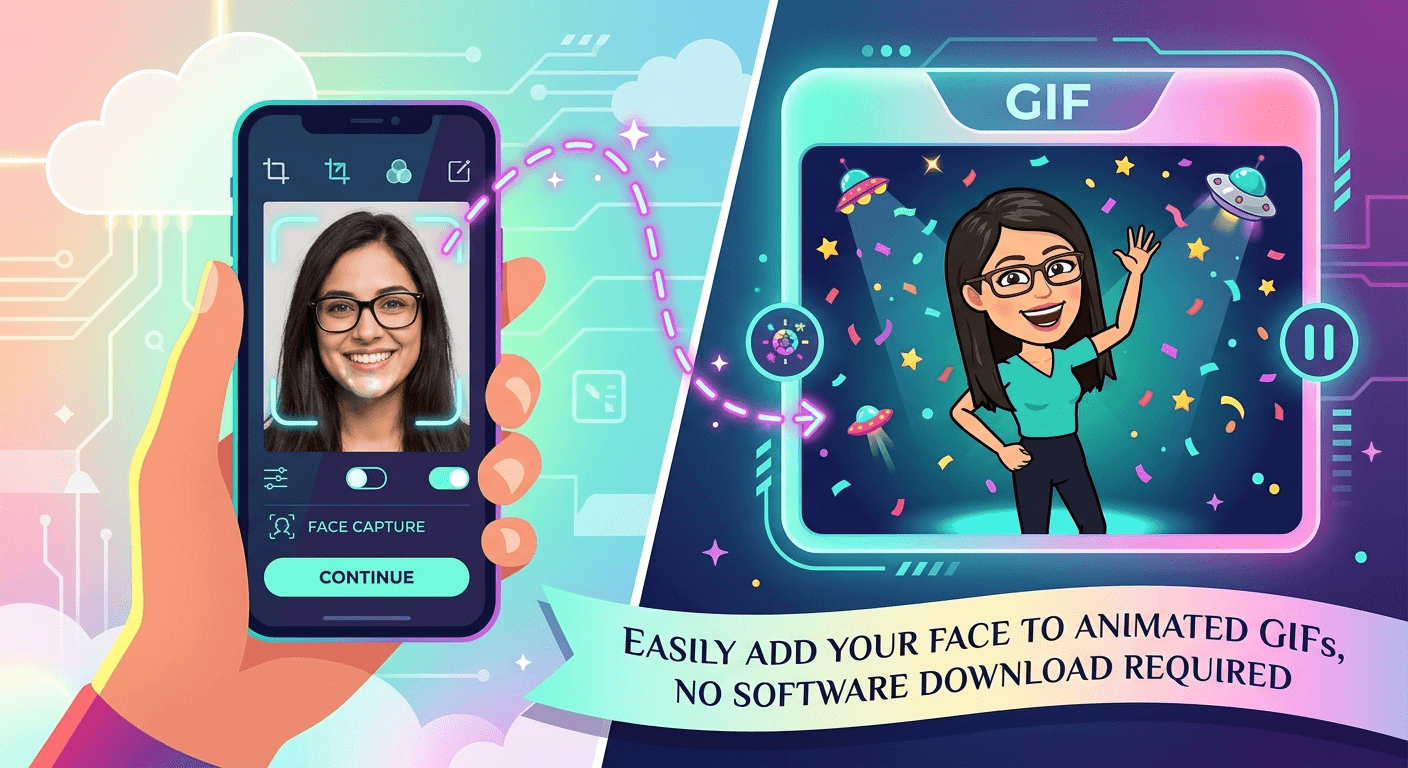
Personalized GIFs are everywhere. You see someone drop a reaction clip in a group chat and it lands perfectly because it has their actual face on it. That kind of content is funny, memorable, and a little unhinged in the best way. The problem most people run into: every tutorial seems to assume you have Photoshop or some other heavyweight editing tool installed. You do not need any of that. The whole thing can happen inside your browser, with free tools, in a matter of minutes.
Key Takeaway: You can put your own face on almost any animated GIF without installing a single piece of software. A browser-based face swap tool handles the animation side, processing every frame so the output still loops like a normal GIF. A separate GIF-to-JPG converter lets you extract and inspect individual frames before you commit to the swap. Together, these two free tools cover the full workflow from preview to polished result, entirely online, in just a few minutes.
Why Personalized GIFs Are Worth Making
Most people scroll past generic reaction GIFs without a second thought. But a GIF with a familiar face in it? That stops the scroll. It creates a moment. Friends screenshot it. It gets shared again.
For content creators, this kind of personalization is genuinely valuable. It sets your posts apart in a feed full of recycled stock reactions. For regular social media users, it is just a fun way to inject some personality into a conversation. Either way, the appeal is obvious.
The bigger question used to be whether you needed technical skills to pull it off. The short answer is no, not anymore. Online tools have gotten genuinely good at handling the tricky parts automatically, and the results have improved a lot over the last couple of years. What once required frame-by-frame manual work in a professional editor now happens with a couple of file uploads and a button click.
What You Actually Need Before You Start
You do not need a powerful computer or a graphics background. Gather a clear photo of the face you want to use, ideally a front-facing shot with even lighting and no heavy shadows across the features. Have the animated GIF you want to modify either saved to your device or easy to find and download. Any modern browser will do the job. Beyond that, just set aside a few minutes for the processing to complete. No account signups are required with most of these tools, and nothing gets permanently stored on your device beyond the finished file you download at the end.
Getting to Know Your GIF Before You Touch It
One step that many people skip, and later regret, is actually reviewing the frames of the GIF before doing anything with it. Animated GIFs can be tricky. The face you want to replace might appear for only a fraction of a second, or the angle might shift between frames in a way you did not notice at full speed. Some GIFs also have several different characters in them, and picking the wrong target means your swap lands on the wrong person entirely.
This is where a GIF to JPG converter earns its place in the workflow. You upload your GIF and it pulls out individual frames as static JPG images. You can scroll through them and see exactly which frame has the face you want to replace, how prominent it is, whether the lighting is consistent across frames, and whether the angle is close enough to your source photo to get a convincing result.
Think of it as a preview step. It takes thirty seconds and saves you from completing an entire face swap only to realize the GIF was never going to work for the effect you wanted. Knowing your source material well before you start is the single biggest factor in getting a clean output on the first try.
How the Face Swap Actually Works on an Animated GIF
The core tool here is a browser-based GIF face swap engine. What makes it different from swapping a face on a still image is that it processes every single frame of the animation and applies the replacement consistently across all of them, so the final output still moves and loops like a normal GIF. The face does not just appear in the first frame and disappear, it tracks and holds across the entire clip.
The technology behind it uses facial detection to locate the face in the source GIF, then maps your uploaded photo onto that position across each frame. It handles differences in angle, scale, and lighting automatically, at least to a reasonable degree. You do not have to manually align anything or tell the tool where the face is. It figures that out on its own.
This is the kind of capability that used to require dedicated video editing software, a solid understanding of masking and compositing, and a fair amount of time. Running it in a browser, for free, without signing up for anything, is a meaningful shift in what casual users can actually do. If you would rather stay on one site for the whole thing, GIFDB has its own built-in GIF Face Swap tool that runs this exact frame-by-frame process right in your browser.
Step by Step: Running the Full Workflow
Here is the complete process from start to finish:
- Pull your frame previews first. Upload the target GIF to the frame extractor and browse through the resulting JPG images. Confirm the face is clearly visible and that the angle is workable across enough frames to make the swap worth doing.
- Open the face swap tool in your browser. No installation prompt will appear. The interface loads directly.
- Upload your GIF. Use the upload button or drag and drop the file onto the interface. Most tools accept the standard GIF format without any conversion needed.
- Upload your face photo. Choose a clear, front-facing image. The closer the angle matches the face in the GIF, the more natural the output will look.
- Start the process. Hit the swap or generate button and let the tool run. Processing time depends on the length and complexity of the GIF, but most short clips finish in under a minute.
- Review the result. The tool will display the finished animated GIF. Watch a few full loops and pay attention to how the face holds up across different frames, especially any where the original face was at a slightly different angle.
- Download and share. If the result looks right, download the file. It comes out as a standard GIF ready to drop into any chat app, social post, or meme format.
Tips for Getting a Cleaner Result
Not every face swap attempt will come out perfectly on the first try. A few small adjustments make a real difference:
- Use a well-lit face photo with soft, even light. Harsh shadows or blown-out highlights make the blending look off at the frame edges.
- Front-facing angles work best. Profile shots or extreme side angles give the tool less facial data to work with and rarely produce a convincing result.
- Shorter GIFs are easier to process. A three-second clip is simpler than a ten-second one, and the output tends to be more consistent.
- Higher-resolution source photos give the tool more detail to map and tend to produce sharper, more realistic output.
- If the GIF has multiple faces and you only want to replace one, look for a tool that lets you select which face to target before running the swap.
Understanding the underlying format can also help you set realistic expectations. The GIF standard, as documented in web image format specifications, uses a limited 256-color palette per frame, which means very detailed face textures may look slightly simplified in the final output. That is a property of the format itself, not a flaw in the tool. Working with high-contrast, clearly defined source photos helps offset this limitation.
Common Use Cases Worth Knowing About
People use this workflow in more situations than you might expect.
Reaction GIFs are the obvious one. Putting your own expression on a classic meme template makes it instantly more personal and funnier to the people who know you. A surprised face that is actually yours hits differently than a stock celebrity clip.
Birthday and celebration content is another popular use. Taking a dancing GIF and swapping in a friend's face is the kind of personalized touch that takes almost no effort but gets a genuine reaction. It shows you put in a small extra effort, and that counts.
Content creators use face-swapped GIFs as recurring branding elements, putting themselves into animated clips to create a more consistent visual identity across posts and stories. When your followers keep seeing the same animated version of your face, it builds recognition over time.
There is also the deliberate comedy angle. Some of the most shared GIFs online are intentionally lo-fi, slightly awkward face swaps used for comedic effect. The imperfection is part of the joke. If your result comes out a little off, that is sometimes exactly what makes it work.
Your Face, Any GIF, No Software Required
The combination of a frame previewer and a browser-based animation tool turns what used to be a multi-step desktop editing task into something anyone can complete in a few minutes. You do not need to be technically skilled. You do not need to spend money. You do not need to download a single application to your computer beyond the finished GIF itself.
Preview your frames, upload your photo, run the swap, download the result. That is the whole workflow. Once you have done it once, you will find yourself reaching for these tools every time you want to make something that feels genuinely personal rather than borrowed from a template library. GIFs are one of the oldest visual formats on the web, and there is nothing dated about making them feel new again with your own face in them.