

How to Add GIFs to Email
GIFs in email are both a creative opportunity and a minefield of compatibility issues. When they work, an animated GIF in an email stands out in a crowded inbox. When they do not, you end up with a static first-frame image that gives no indication there was ever any animation intended. Here is how to use GIFs in email reliably.
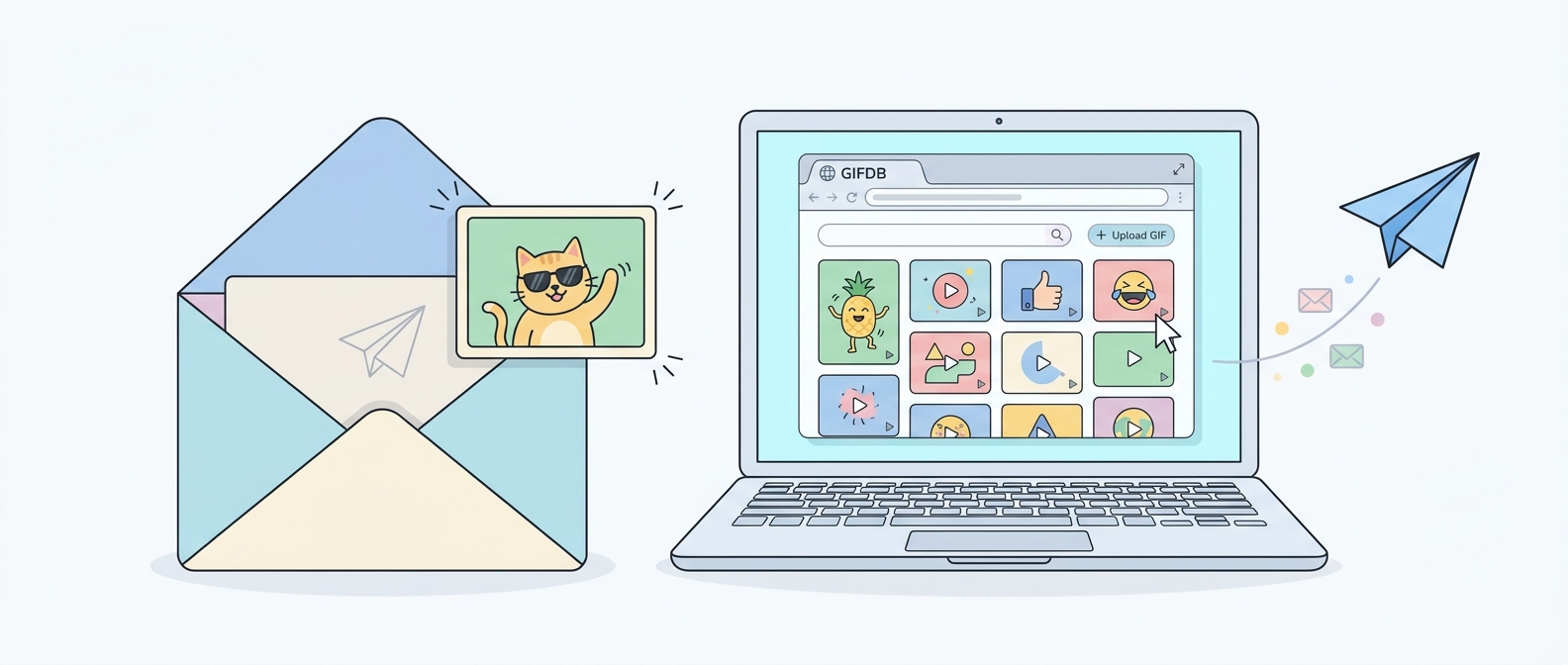
The Outlook Problem
The most important thing to know about GIFs in email is that Outlook on Windows — still one of the most widely used email clients in business settings — does not animate GIFs. It displays only the first frame as a static image. If your audience is likely to read your email in Outlook for Windows, make sure your first frame is informative and visually complete on its own. Do not rely on the animation to communicate your key message, because a significant portion of recipients will never see it move.
Gmail, Apple Mail, iOS Mail, Yahoo Mail, and most modern webmail clients do animate GIFs correctly. Mobile email clients are generally reliable too. The Outlook limitation is specific to the Windows desktop application.
How to Insert a GIF in Gmail
Compose a new email in Gmail. Click the image icon in the formatting toolbar at the bottom of the compose window — it looks like a mountain landscape. Choose Upload and select your GIF file. Gmail will embed the image inline in the email body. Once inserted, you can click the image to select it and choose a display size: small, medium, large, or original. For most email layouts, medium or large works best — the animation needs to be big enough to be legible.
Alternatively, you can drag a GIF directly from your desktop into the Gmail compose window and it will insert inline.
How to Insert a GIF in Apple Mail
In Apple Mail, open a new message and drag your GIF file from Finder into the email body. The image will appear inline. You can right-click it and choose View as Icon to display it as an attachment instead, but for animation to work it needs to stay inline. Apple Mail on macOS animates GIFs natively.
GIF File Size for Email
Large GIFs slow down email loading and may trigger spam filters. Keep email GIFs under 1 MB for newsletters and marketing emails, and under 3 MB for one-to-one correspondence. Smaller is always better for email. The guide on reducing GIF size covers the steps to compress your file before attaching — reducing the canvas width to 400–500px and dropping unnecessary frames usually gets a GIF into an email-friendly size range quickly.
Using GIFs in Email Marketing
In marketing email platforms like Mailchimp, Klaviyo, or Campaign Monitor, you insert a GIF the same way you insert any image — use the image block and upload the GIF. Most platforms will display the GIF file as-is, preserving the animation for clients that support it. Design your email so that the first frame of the GIF works as a standalone image — that is your fallback for Outlook users.
A well-timed GIF in a product announcement email, for example, can show a product feature in action that a static image cannot capture. A looping GIF of a UI interaction or a brief product demo often increases click rates simply because the motion attracts attention in a text-heavy inbox.
Finding GIFs for Email
GIFDB has clean, professional-looking options in categories like birthday GIFs and love GIFs that work well in personal emails. For professional communications, animated GIFs work better when they are simple, subtle, and not too long. The main how to share GIFs guide covers all platforms, and the PowerPoint GIF guide is a useful companion for presentation contexts.