

How to Send GIFs in iMessage
iMessage is one of the smoothest platforms for sharing GIFs because Apple built a native GIF experience right into the Messages app. You can search for and send GIFs from a GIPHY library without leaving a conversation, and GIFs you send from your own files animate perfectly inline. Here is how all of it works.
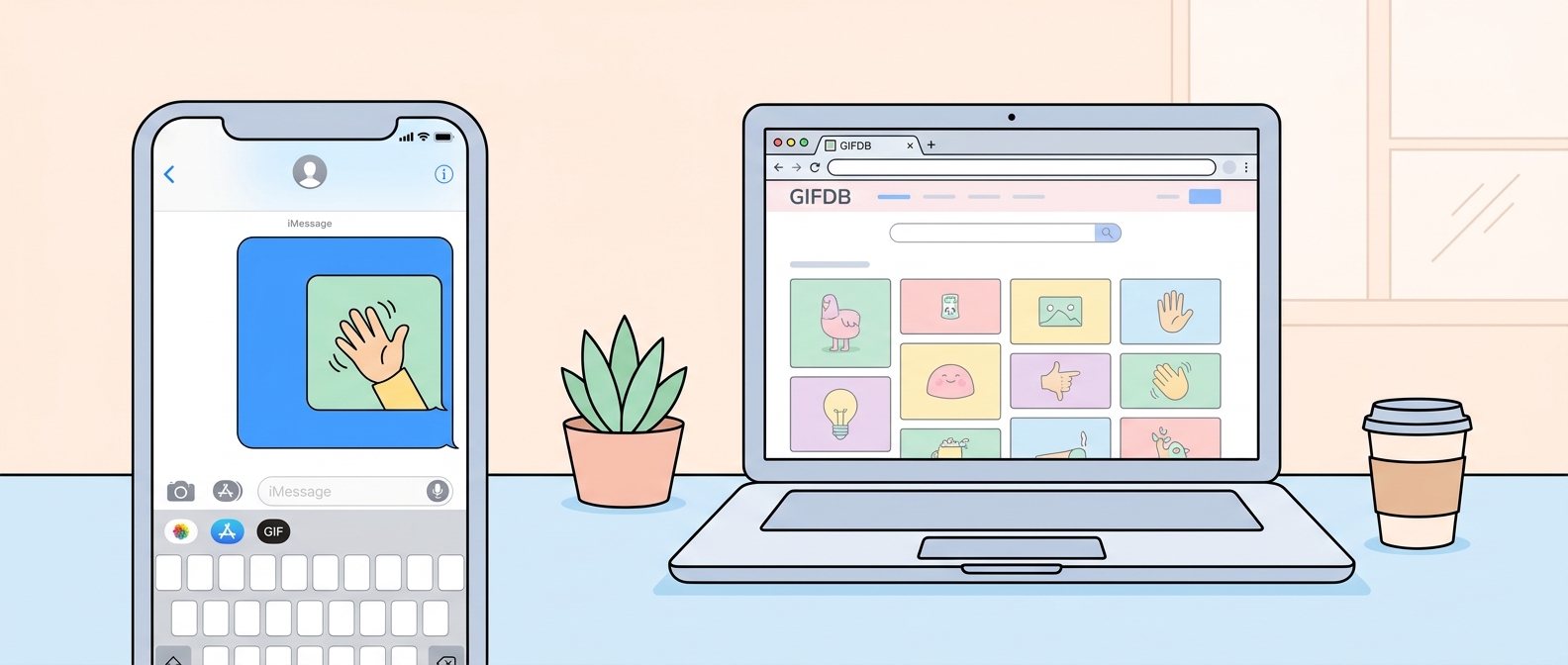
Using the #images GIF Search in iMessage
Open a conversation in Messages on iPhone, iPad, or Mac. Tap or click the App Store icon next to the message bar to open the iMessage apps tray. If you do not see #images immediately, swipe through the app icons until you find it — it looks like a magnifying glass icon. Tap it to open the GIF and image search panel. Type your search term in the field at the top. iMessage searches both GIPHY and Bing Images and returns animated GIF results. Tap any GIF to send it immediately.
On macOS, the same feature is accessible through the A icon in the Messages toolbar or via the emoji/GIF button depending on your macOS version. The GIPHY-powered search returns the same results as on iPhone.
Sending Your Own GIF Files
To send a GIF you have saved to your Photos or downloaded from somewhere like GIFDB, tap the camera icon in the message bar and select Photo Library. Navigate to your GIF — it may be in a Recents album or in a GIFs album if you have one. Tap the GIF to select it, and tap Send. The GIF will animate inline in the conversation for both you and the recipient, as long as both are using iMessage (blue bubble) rather than SMS (green bubble).
Over SMS, GIFs are typically sent as MMS attachments and may display as a static image or a small video depending on the recipient's device and carrier. Animation is only reliably preserved over iMessage connections.
Saving GIFs from iMessage
To save a GIF you received in a conversation, press and hold on the GIF until a context menu appears. Tap Save, and the GIF will save to your Photos library. From there, you can reshare it, edit it, or send it in other apps.
GIF Reactions with Tapback
iMessage Tapback reactions (the thumbs up, heart, exclamation marks) are not GIFs, but in iOS 17 and later, Apple expanded Tapback to let you react with any emoji, which when displayed in-context creates a small animated response. For GIF reactions specifically, the #images search is still the right route.
Best GIFs to Send via iMessage
GIFs in personal conversations tend to work best when they are short, expressive, and recognizable. The funny category on GIFDB has hundreds of reaction GIFs perfect for iMessage, and the love GIFs collection has sweet options for personal conversations. For more on GIF sharing across platforms, the main how to share GIFs guide covers everything. The WhatsApp equivalent is in the guide on sending GIFs on WhatsApp.