

How to Use GIFs on Slack
Slack's GIF culture is one of its best features for team morale and communication. Whether you are using the built-in GIPHY integration or uploading your own files, GIFs in Slack animate inline in every channel and DM. Here is how to use them, including the settings your workspace may have enabled or restricted.
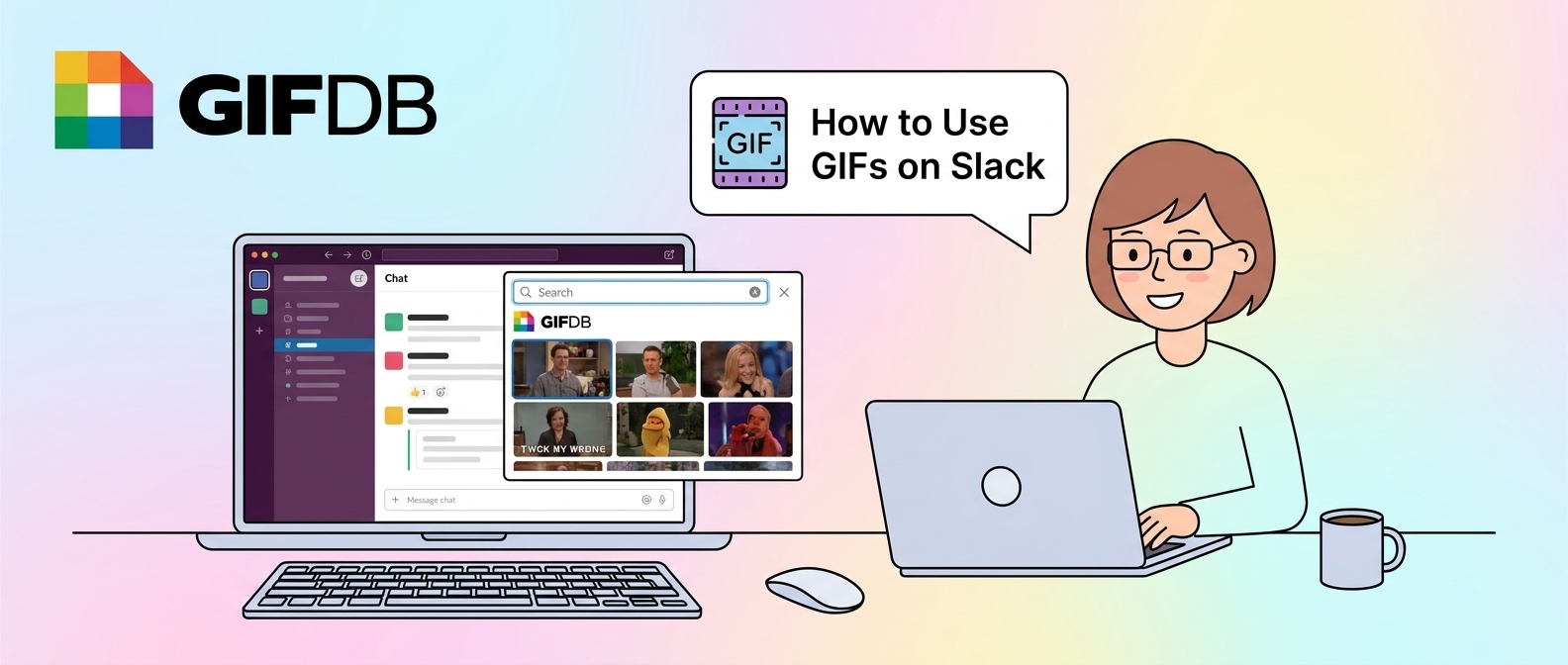
Using the GIPHY Slash Command
If your Slack workspace has the GIPHY app installed (many do by default), the fastest way to send a GIF is to type /giphy followed by your search term in any message field. For example, typing /giphy celebration will pull a random GIF from GIPHY's celebration category and show it to you before sending. You can click Shuffle to get a different GIF, or Send to post it to the channel. The GIF animates inline in the conversation and displays a "via GIPHY" watermark for attribution.
If /giphy is not available in your workspace, it means the integration has not been added or has been disabled by an administrator. Administrators can re-enable it in the Slack App Directory under the GIPHY app settings.
Uploading a GIF File
To upload a GIF you have saved or created, click the paperclip icon or the plus button next to the message bar, then select Upload from computer. Choose your GIF file. Slack will display a preview before you send — add a message if you want, then click the Send button. Slack plays GIFs inline in the channel and they loop continuously for everyone in the conversation. The file size limit for attachments in Slack is 1 GB, so file size is rarely an issue for GIFs.
Adding GIF Reactions
Slack supports custom emoji, and if your workspace administrator has uploaded animated GIF emoji, you can use them as reactions. Hover over any message, click the emoji reaction icon, and search for animated emoji if your workspace has them. Some teams build large libraries of custom animated reactions that become part of the team's communication culture.
Using GIFs in Slack Status
Slack status fields support emoji including custom animated ones, but not full GIF uploads. To set a GIF-like status, your workspace administrator would need to have uploaded the animation as a custom emoji and you would use that emoji in your status. This is more of an advanced workspace customization than a standard feature.
Slack GIF Etiquette
Slack is a professional tool for most teams, and GIF culture varies widely by workspace. In general, GIFs work best in dedicated fun channels, reactions to good news announcements, and celebratory moments. Overusing GIFs in serious project channels can feel distracting. Reading your team's existing communication patterns is the best guide for when and how often to use them.
For GIFs that fit a professional tone, GIFDB has options in the funny category that are clever without being crude, and for celebration moments the birthday collection and more broadly the positive reaction GIFs work well. For the full cross-platform guide, see how to share GIFs. For adding GIFs to presentations you might share with your Slack team, see the PowerPoint GIF guide.