

How to Add GIFs to PowerPoint
Animated GIFs in PowerPoint can make a presentation genuinely more engaging — a looping product demo, a quick reaction to a data point, a subtle animation that keeps slides from feeling static. Inserting them is simple, but there is one important caveat about how PowerPoint handles GIFs that you need to know before you start.
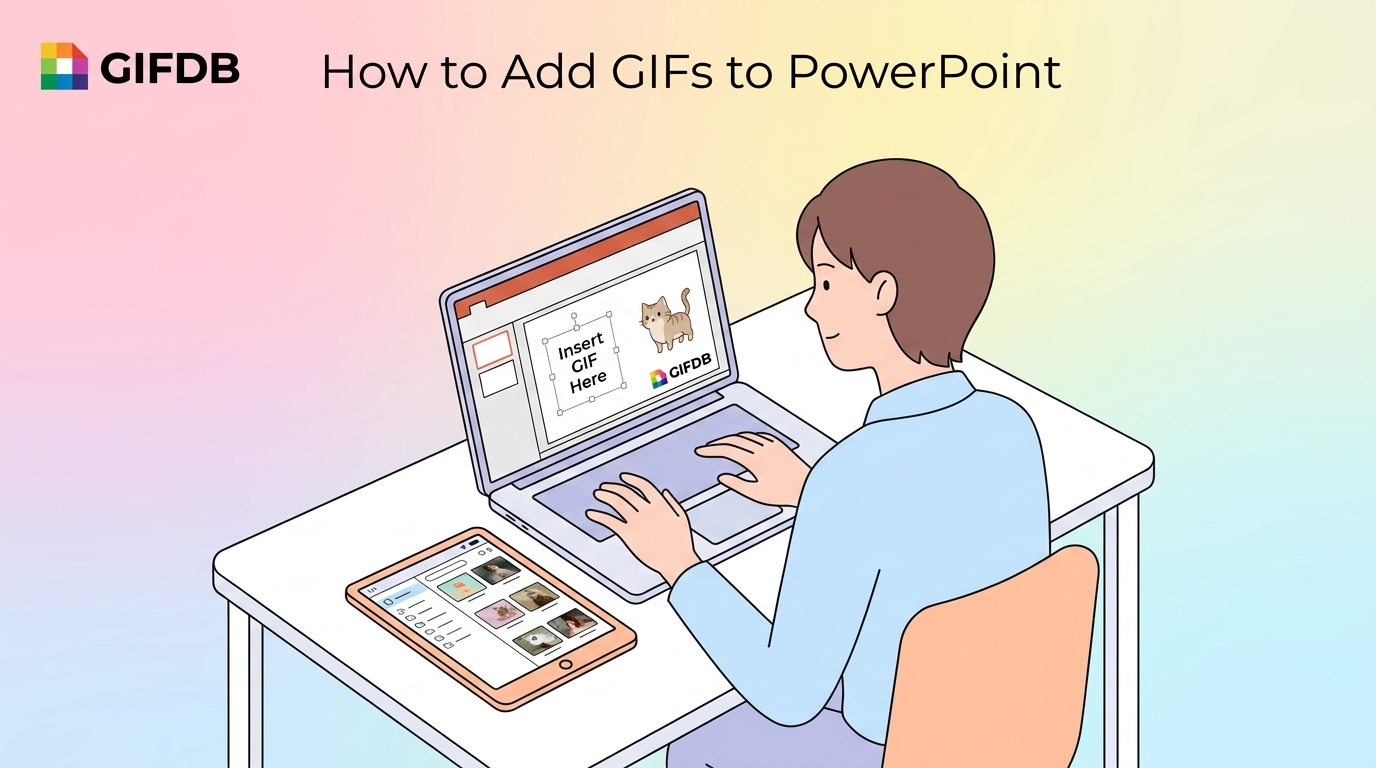
How to Insert a GIF in PowerPoint
Click on the slide where you want the GIF to appear. Go to the Insert tab in the ribbon and click Pictures. In the dialog box that opens, navigate to your GIF file and select it. Click Insert. The GIF will appear on the slide as an image object that you can resize, reposition, and layer with other elements.
The animation will not play while you are in the editing view. To see it animate, enter the slideshow presentation mode — press F5 to start from the beginning, or Shift+F5 to start from the current slide. The GIF will loop continuously while that slide is displayed, and stop animating when you advance to the next slide.
The One-Caveat: Editing View vs Slideshow Mode
This trips up a lot of people. The GIF looks static in Normal and Slide Sorter views — it only animates during an actual slideshow. If a colleague opens your file and wonders why the GIF is not moving, they just need to enter presentation mode. There is no way to preview GIF animation in the editing view; this is a PowerPoint limitation, not a file problem.
GIF File Size Recommendations
PowerPoint files with embedded GIFs can become large quickly. A presentation with five or six high-quality GIFs might balloon to 50–100 MB, which makes it slow to email or open. For smooth presentation performance, keep individual GIFs under 5 MB. The guide on reducing GIF file size covers the compression steps that keep things manageable without degrading quality on a projector screen.
If a GIF is too large to embed, an alternative is to convert it to an MP4 video and insert it as a video object instead. PowerPoint's video objects have better compression support and play more reliably on different hardware. Use the GIFDB converter in reverse to go from GIF to MP4, then Insert, then Video, then This Device.
Positioning and Sizing GIFs in Slides
Click the GIF to select it and drag the corner handles to resize while maintaining proportions. For most slide layouts, a GIF that takes up one-quarter to one-third of the slide area looks balanced alongside text. Full-bleed GIFs that fill the entire slide work for title slides or transition slides where the animation is the main event. Use the Format tab to apply borders, shadows, or alignment guides to integrate the GIF neatly into your slide design.
Finding GIFs That Work in Presentations
Presentations benefit from GIFs that are clear, not too fast, and visually clean. Overly busy GIFs are distracting in a slide deck. GIFDB's funny collection has clean reaction GIFs that work well for humor in presentations, and the birthday category is perfect for internal celebration slides. For the full guide to GIF sharing, visit the main how to share GIFs guide, and for using GIFs in professional email contexts, see adding GIFs to email.