

The Best Ways to Convert and Compress GIFs for Social Media
The Best Ways to Convert and Compress GIFs for Social Media
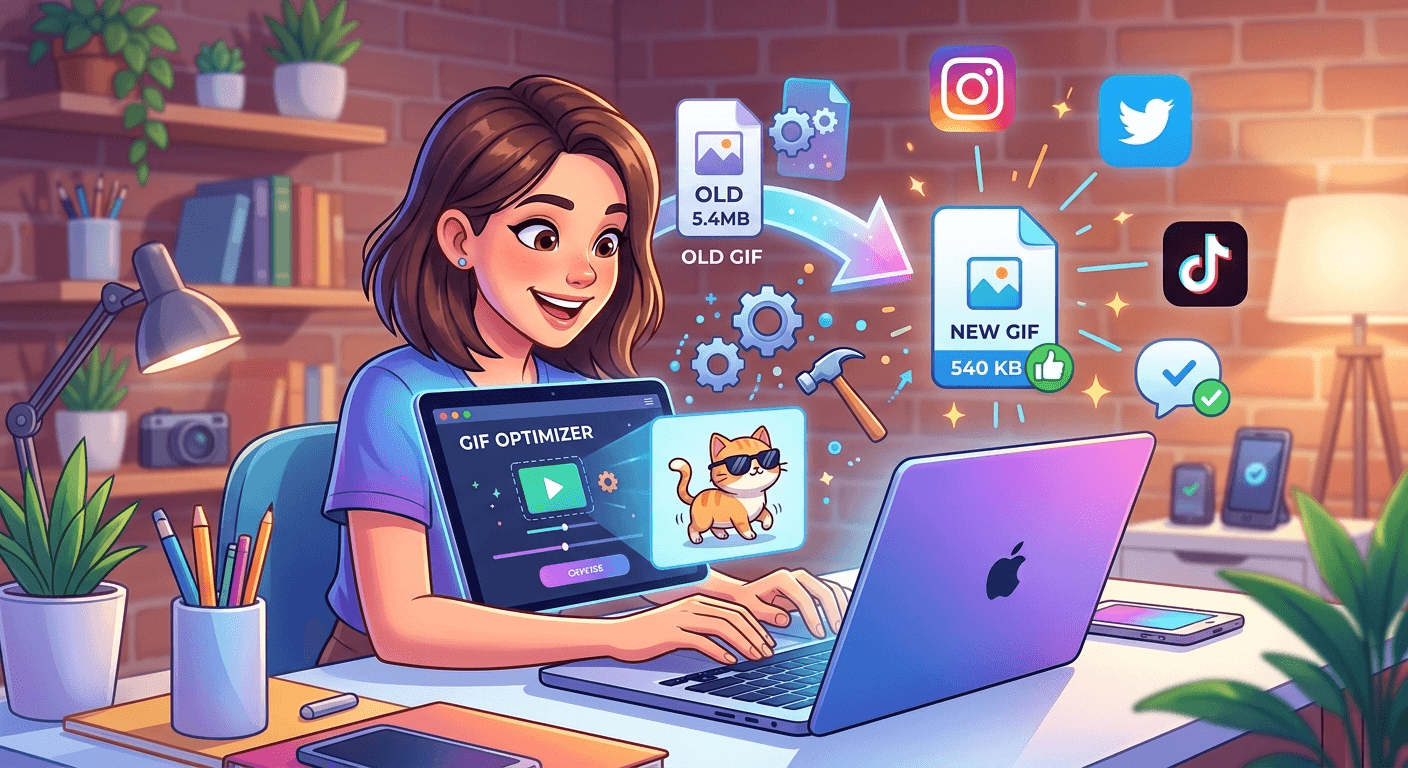
You finally found the perfect GIF. It's funny, it's on-brand, and it's exactly what your comment needed. Then you try to upload it and get hit with a file size error, a blurry preview, or worse, a silent rejection with no explanation. This happens more than you'd think, and the culprit is almost always a bloated GIF file that the platform just doesn't want to deal with.
The good news is that fixing this is straightforward once you understand what's actually going on with your files.
Key Takeaway: 1\. Converting a GIF to JPG creates a lightweight static preview that loads fast and passes platform limits. 2\. Running your images through a compression tool before uploading preserves visual quality while cutting file size. 3\. Using ready-made or custom-built GIFs from a dedicated library saves time and gives you optimized content from the start.
Why GIF Files Get So Big So Fast
GIFs are essentially a string of individual image frames played back in sequence. A three-second clip with a dozen frames can easily balloon past 5MB, even at a modest resolution. That's before you factor in high frame rates or detailed backgrounds.
Most social platforms impose strict file size limits. Twitter caps GIFs at 15MB. Instagram is even tighter in certain placements. Discord has a 8MB limit for free users. And even when a file technically fits, a large GIF often gets recompressed by the platform's own algorithms, which destroys the quality you originally had.
The result is fuzzy, dithered animations that look nothing like the crisp original. This is the core problem that most people don't realize is entirely preventable.
The Case for Converting GIFs to JPG
One of the most overlooked tricks in the social media toolkit is converting your GIF into a static image for posts that don't actually need animation. Think about it: if you're posting a reaction image in a comment thread, a high-quality still frame often communicates the same emotion as the full animation, at a fraction of the file size.
This is where GIF to JPG conversion becomes genuinely useful. You pull the best frame from your animation and save it as a clean JPEG. The resulting file is typically 90% smaller than the original GIF. It loads instantly, passes every platform's upload requirements, and looks sharp at full resolution.
This approach works especially well for:
- Reaction stills where the expression tells the whole story
- Meme templates used as image posts rather than animated clips
- Preview thumbnails before linking to a full animated version
- Profile images and banners where animation isn't supported
The JPG format also handles color gradients far better than GIF, which is limited to 256 colors per frame. Skin tones, sunsets, and gradient backgrounds all look noticeably better in JPEG.
Shrinking File Size Without Sacrificing Quality
Even when you need to keep the animation intact, you don't have to live with a 10MB file. Smart compression reduces the size without visible quality loss, and it takes about thirty seconds.
The key is understanding what compression actually does. Lossless compression removes redundant data without touching pixel information. Lossy compression makes minor sacrifices in detail that most viewers won't notice, especially on a phone screen.
Running your files through a tool that lets you compress images gives you control over that tradeoff. You can push a file down to a third of its original size and still have something that looks excellent at normal viewing size. The quality reduction only becomes noticeable when you zoom in, which almost no social media viewer actually does.
A few things that affect how well compression works: GIFs with flat color blocks compress better than those with lots of visual noise or texture. Shorter animations compress more efficiently than long ones. And reducing the number of colors in the palette, even slightly, can shave off significant kilobytes without visible degradation.
Starting With the Right GIF in the First Place
Sometimes the most efficient path is not editing a bad file but starting with a good one. If you're regularly downloading random GIFs from search results, you're working with files that were already compressed by whoever uploaded them, then compressed again by the platform that hosted them. You're often starting with third or fourth generation quality.
Browsing a curated library of reaction GIFs solves this immediately. You get files that were intended for sharing, optimized for reasonable file sizes, and organized so you can actually find what you're looking for without scrolling through irrelevant results for ten minutes.
This is a genuinely better starting point than pulling GIFs from random tweet threads. The quality is higher, the variety is broader, and you don't spend time tracking down a clean version of something that already exists.
Making Your Own GIFs and Exporting Them Right
If you create original GIFs rather than sharing existing ones, the export settings matter enormously. Most people accept whatever defaults their editing tool applies, and that's usually where the oversized file problem starts.
The GIF creation tools available directly in gifdb let you build and export animations in a controlled environment, so you're not fighting against the limitations of a general-purpose editor that wasn't designed with social media file limits in mind.
When you're building a GIF from scratch, a few decisions have an outsized impact on final file size. Frame rate is the biggest lever: dropping from 30fps to 15fps cuts the number of frames in half and often has no perceptible effect on how the animation looks. Canvas size matters too. A GIF doesn't need to be 1920px wide to look good in a tweet. 480px to 600px wide is usually more than sufficient and results in dramatically smaller files.
Color depth is the third variable. Most GIF editors let you specify how many colors to include in the palette. 256 colors is the maximum. For many simple animations, 128 or even 64 colors is entirely adequate and produces smaller files with no visible difference to the viewer.
The Workflow That Actually Works
Putting all of this together, the practical sequence looks like this:
- Start with a high-quality source, either from a curated library or your own footage
- Create or edit the GIF with social media dimensions in mind from the beginning
- Export with a reduced frame rate and appropriate color palette
- Run the final file through a compression pass before uploading
- If the platform doesn't support animation or you just need a still, convert the best frame to JPG
This order matters. Compressing after export rather than before means you're only compressing once, which preserves more quality than multiple passes. And converting to JPG as a deliberate choice rather than a fallback lets you treat static and animated versions as separate assets with different use cases.
When Platforms Work Against You
Even with a perfectly optimized file, some platforms will recompress your GIF on their end. Instagram is notorious for this. Twitter does it too, though less aggressively. There's a point of diminishing returns where you've done everything right and the platform still degrades your file.
In those cases, the static JPG approach often produces better visible results than a recompressed animation. A sharp still frame beats a muddy, stuttering animation every time. It's a tradeoff worth knowing about before you spend an hour trying to achieve GIF perfection for a platform that's just going to blur it anyway.
Understanding the platform's behavior means you can choose the format that survives the upload process, rather than hoping for the best.
Getting the Most Out of Every GIF You Share
The difference between a GIF that lands well and one that gets ignored often comes down to technical quality as much as content. A blurry, slow-loading animation gets scrolled past. A crisp, fast-loading one stops people in their feeds.
Converting to JPG when animation isn't necessary, compressing before upload, starting from high-quality source material, and building with the right tools from the start: these aren't complicated steps. They're just the steps that most people skip. Once they're part of your workflow, sharing GIFs that actually look the way you intended them to stops being a frustrating guessing game.