

How to Send GIFs on WhatsApp
WhatsApp plays GIFs, but only if you send them the right way. Send a GIF as a regular photo attachment and it will often arrive as a static image. Attach it as a video and it may play once without looping. There is a right way to do it, and once you know it, sharing animated GIFs on WhatsApp is completely reliable.
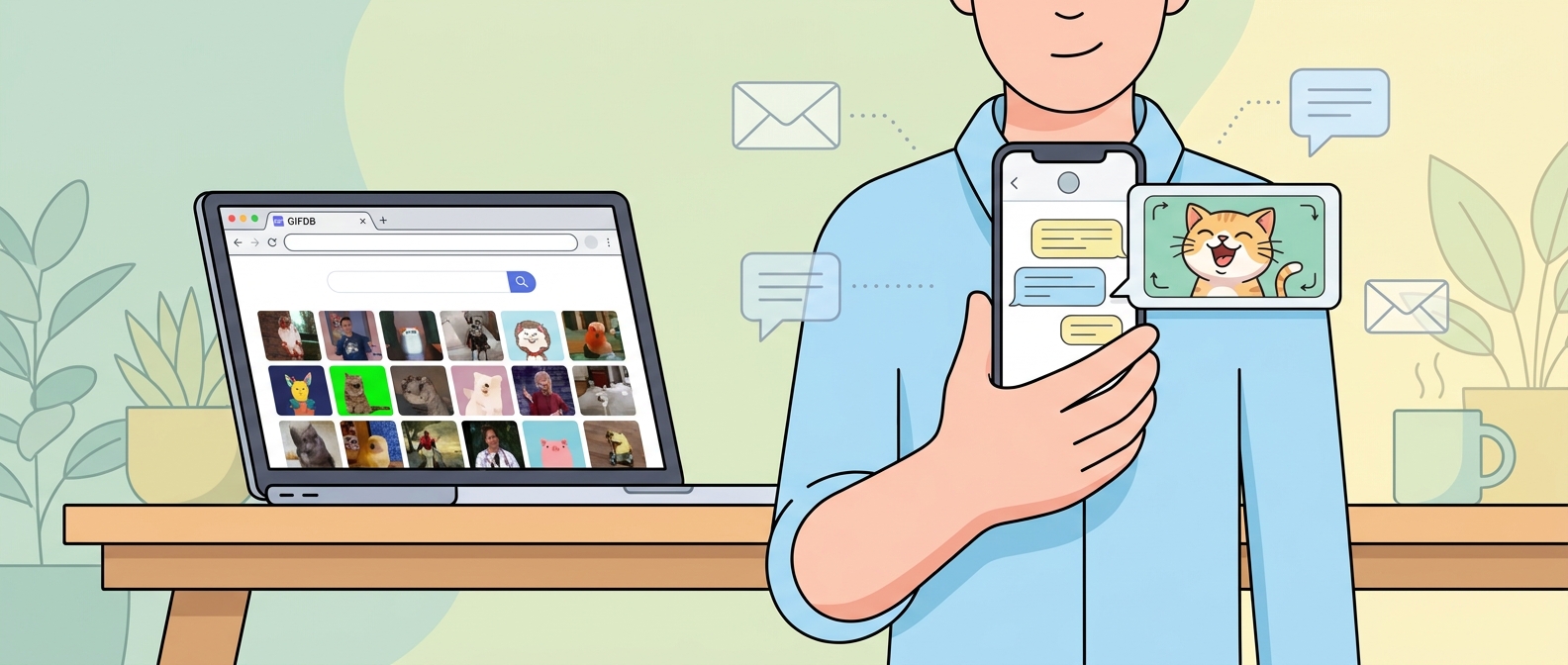
The Right Way to Send a GIF on WhatsApp
Open a WhatsApp conversation and tap the attachment icon — the paperclip on Android or the plus symbol on iPhone. Select Gallery or Photos, then navigate to the GIF you want to send. When you select a GIF file, WhatsApp will recognize it as an animation rather than a static image and display a small infinity symbol (∞) on the preview, indicating it will loop. Tap Send. The GIF arrives in the chat and loops automatically for the recipient without any tap required.
The key detail is that the file must be a genuine .gif file with the GIF extension, not a .mp4 or .mov. WhatsApp treats those as video files and plays them once then stops. If your animated image is in a different format, convert it first using the MP4 to GIF converter before sending.
Using WhatsApp's Built-in GIF Search
WhatsApp has a built-in GIF keyboard powered by GIPHY. Tap the emoji icon in the message bar, then look for the GIF button at the bottom of the emoji panel — it shows the letters GIF. Tap it to open the GIF search interface. Type a search term, browse the results, and tap any GIF to send it immediately. This is the fastest way to send a reaction GIF without leaving WhatsApp, and the GIFs from this library are already the right format and size.
Sending GIFs in WhatsApp Status
To add a GIF to your WhatsApp Status (the 24-hour story feature), tap the Status tab, then the camera icon. Tap the Gallery icon at the bottom left to choose media from your camera roll. Select your GIF — it should play in the preview. Tap Send. Your GIF status will animate for viewers who tap on it, though WhatsApp may play it as a video loop rather than a true GIF depending on the version.
Sending GIFs in WhatsApp Groups
The same process applies in group chats. Tap the attachment icon, select the GIF from your gallery, and send. GIFs in group chats load inline just like in individual conversations, though recipients with older devices or slower connections may see a thumbnail they need to tap to load rather than immediate autoplay.
Troubleshooting: GIF Arrives as a Still Image
If your GIF is arriving as a static image rather than animating, there are two likely causes. First, the file might not actually be a .gif — some camera apps and screen recorders save animated images as APNG or WebP, which WhatsApp does not always animate. Converting to proper GIF format using the GIFDB GIF maker before sending will fix this. Second, the GIF might be too large. WhatsApp compresses media it considers oversized, and that compression process can strip the animation data. Keep GIFs under 5 MB to avoid this — the guide on reducing GIF size covers how to get there.
Finding Good GIFs to Send
For ready-made GIFs, GIFDB has collections organized by mood and occasion. The funny category is perfect for reactions, love GIFs work well for personal chats, and birthday GIFs are a quick way to celebrate someone without typing a message. For the complete guide to sharing GIFs everywhere, visit the main sharing guide, and for the iMessage equivalent of this guide, see sending GIFs in iMessage.