

How to Convert MOV to GIF
MOV is Apple's native video format — it is what iPhones record to, what QuickTime Player saves to, and what many Mac video tools export by default. Converting a MOV file to a GIF follows the same basic process as MP4 to GIF conversion, because most modern tools treat them interchangeably. Here is how to do it.
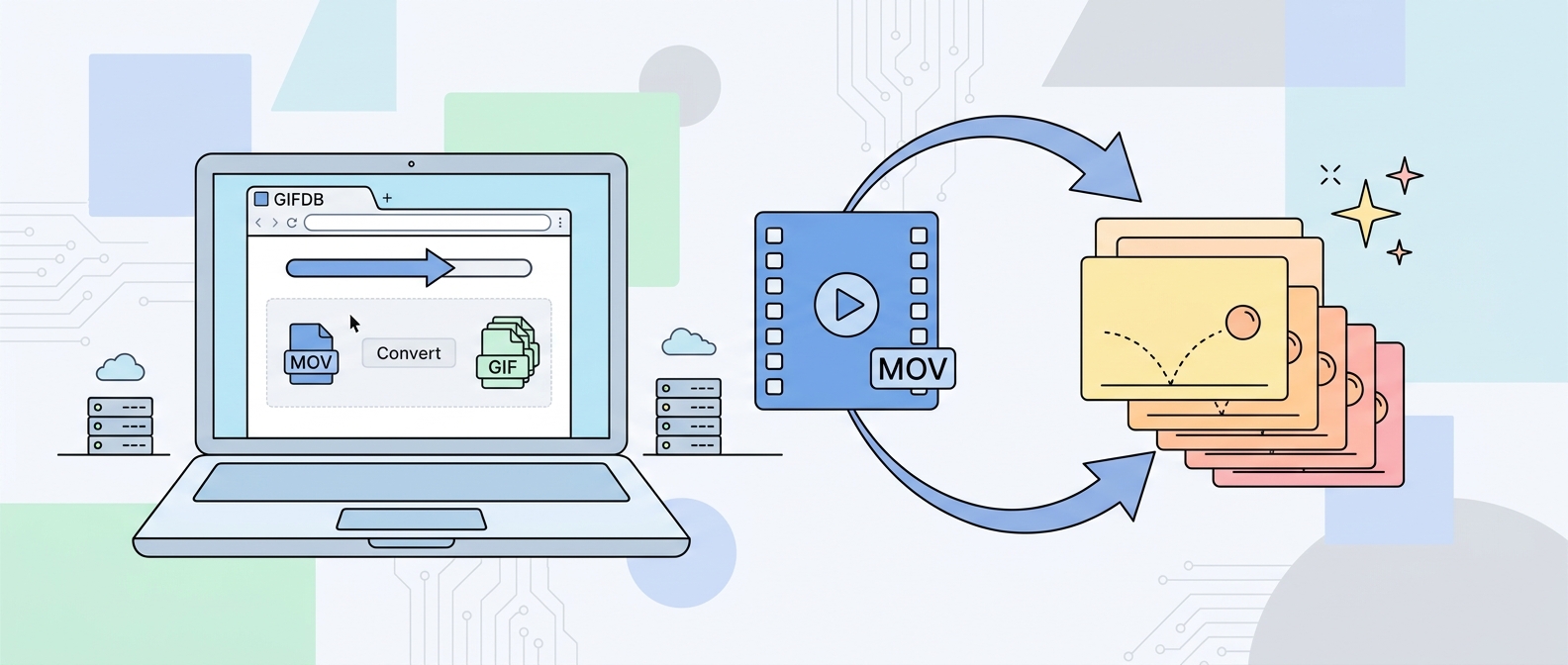
Using the GIFDB Converter
The GIFDB MP4 to GIF converter accepts MOV files in addition to MP4. Go to the converter, click Upload, and select your .mov file. Set your trim points using the timeline handles, choose a resolution (480p for sharing, 720p for higher quality), and click Convert. The tool treats MOV and MP4 identically for this purpose, and the result is a standard GIF file. This is the fastest option for a one-off conversion with no software to install.
Using Ezgif
Ezgif's Video to GIF tool also accepts MOV files. Upload the file, set your start and end time in seconds, choose your frame rate (15 fps is usually right), set your output dimensions, and convert. Ezgif gives you slightly more granular control over settings than the GIFDB tool, which makes it useful when you need to fine-tune output for a specific use case.
Using QuickTime Player on Mac
If you are on Mac, you can trim the MOV file using QuickTime Player before converting — open the file, go to Edit then Trim, drag the handles to your desired section, and save a trimmed copy. Then take that smaller file to the converter. This is useful when you have a long screen recording or iPhone video and only need a specific moment, because uploading a trimmed 10-second clip is much faster than uploading a 5-minute file.
Using Photoshop
Photoshop imports MOV files through File, then Import, then Video Frames to Layers — the same path used for MP4. Select your MOV, set the frame range, and Photoshop creates a frame animation in the Timeline. Export as GIF using File, then Export, then Save for Web (Legacy). Photoshop's color palette optimization in this dialog produces higher quality GIFs than most online converters for content with complex colors.
Reducing File Size After Conversion
MOV files from iPhones are often shot at 4K or 1080p, which can produce very large GIFs even after conversion. For most sharing purposes, the output does not need to be above 480p wide. Set your resolution to 480 in the converter settings before converting rather than compressing after the fact — converting at the right resolution from the start produces better quality than scaling down a large GIF.
If you still need to compress the result, the GIF compression guide covers the additional steps. For the broader format and conversion landscape, the main GIF format guide is the reference point, and the related guide on converting MP4 to GIF covers the more common MP4 conversion in full detail.