

How to Convert GIF to MP4
Converting a GIF to MP4 is often the right move when you need a smaller file, want to add audio, or are uploading to a platform that handles video better than it handles large GIF files. The process is simple and the file size savings can be dramatic — often a 5–10x reduction for identical visual quality.
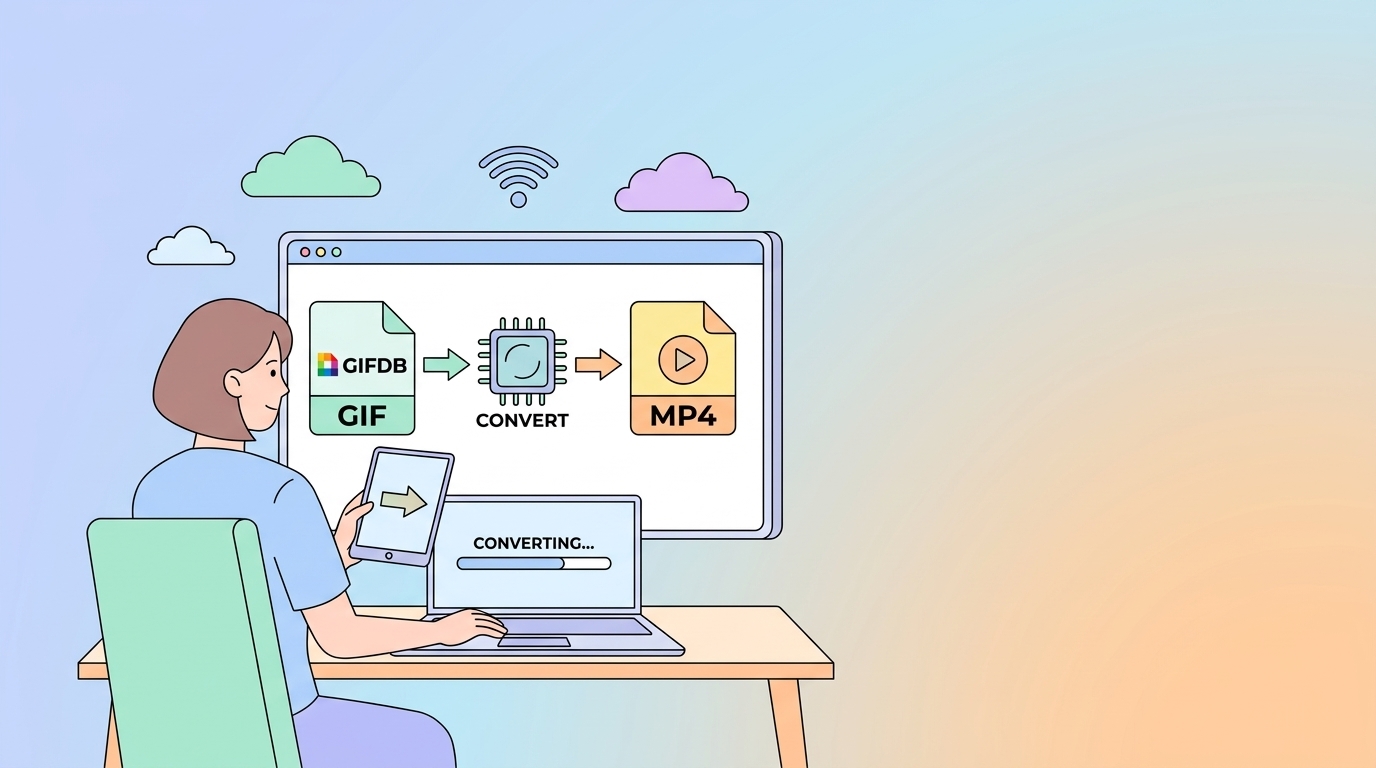
Why Convert GIF to MP4
The most common reason is file size. A 10 MB GIF can become a 1 MB MP4 with no perceptible quality difference. This matters when you are emailing a file, uploading to a service with size limits, hosting on a website where load time is important, or sharing to a platform like Twitter that imposes GIF limits. MP4 also supports audio, which GIF cannot carry at all — so if you want a looping video with sound, you need to add the audio to an MP4 export. And some platforms — notably Instagram feed posts and YouTube — only accept video formats, not GIF uploads.
Converting in a Browser with Ezgif
Ezgif.com has a dedicated GIF to MP4 converter. Go to the site, click GIF to Video in the navigation, upload your GIF file, and click Convert. The resulting MP4 will loop the same way the GIF did, though note that most video players do not loop automatically — you may need to set looping via HTML attributes (loop on a video tag) or in your video player settings. Download the MP4 and you are done.
Converting in Photoshop
Open the GIF in Photoshop using File then Open. Photoshop imports the GIF as a video layer in the Timeline. Go to File, then Export, then Render Video. In the dialog, choose H.264 as the format and MP4 as the container. Set your frame size (match the original GIF dimensions) and frame rate. Click Render. Photoshop exports a clean MP4 that preserves the visual content of every frame.
Converting with FFmpeg
FFmpeg's command for GIF to MP4 conversion is: ffmpeg -i input.gif -movflags faststart -pix_fmt yuv420p -vf "scale=trunc(iw/2)*2:trunc(ih/2)*2" output.mp4. The scale filter ensures the dimensions are divisible by 2, which is required by most MP4 encoders. The pix_fmt yuv420p flag ensures broad compatibility across video players. The movflags faststart option moves metadata to the front of the file for faster web streaming.
Playing the MP4 as a Loop
Unlike GIFs, MP4 files do not loop by default. To make an MP4 loop on a webpage, use the HTML video tag with the loop attribute: <video autoplay loop muted><source src="your.mp4" type="video/mp4"></video>. On social platforms, short MP4 videos typically loop automatically when they are under 60 seconds. In messaging apps like Discord, looping behavior varies but most short clips will replay. For the reverse conversion — MP4 back to GIF — use the GIFDB MP4 to GIF converter. For the broader format comparison, see GIF vs MP4 and the main GIF format guide.