

How to Convert WebP to GIF
WebP is a modern image format from Google that supports both static and animated images. If you have a WebP file — animated or not — and need it as a GIF, the conversion is straightforward using a few different tools. Here is how to do it.
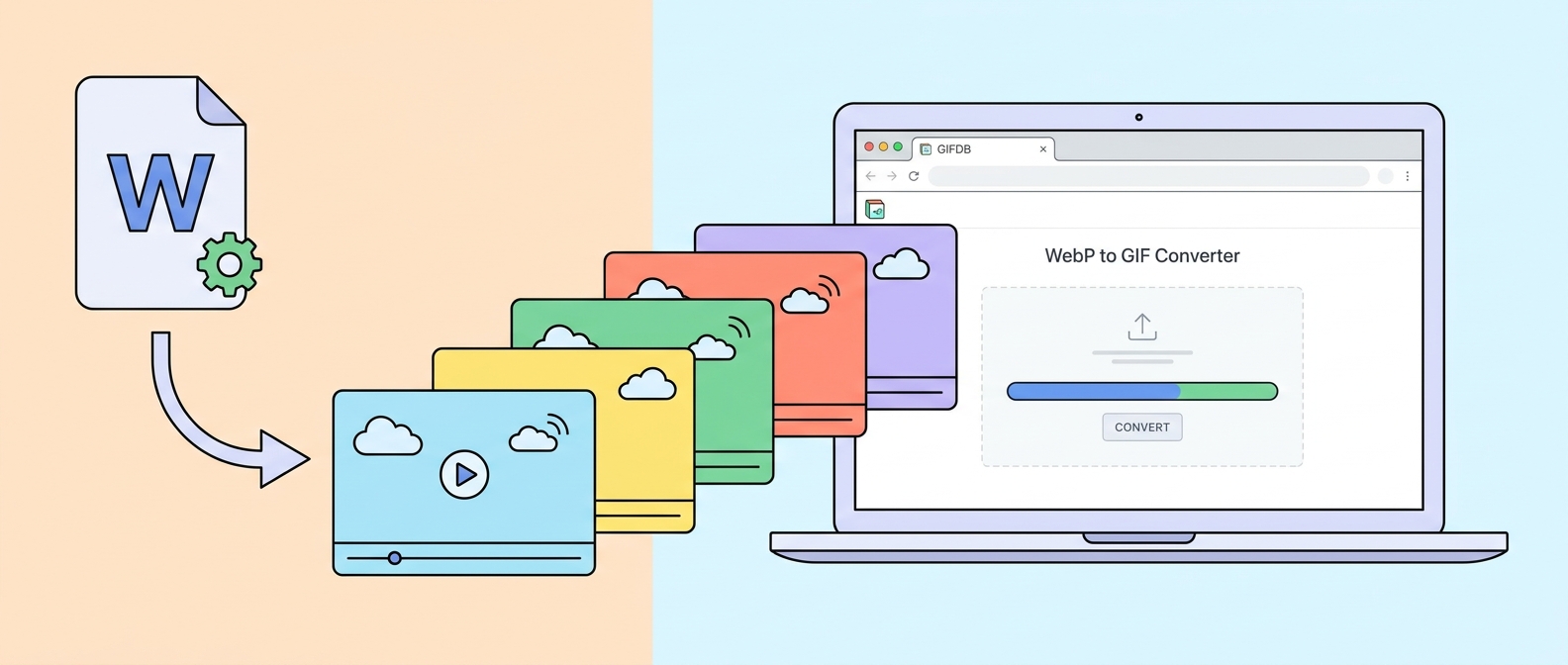
Why You Might Need This Conversion
Animated WebP files are increasingly common from design tools, web scrapers, and certain download tools. However, WebP is not supported in all email clients, some older browsers, and various image editing tools that only accept GIF for animated content. Converting to GIF gives you a format that works everywhere, at the cost of the larger file size and reduced color quality that are inherent to the GIF format.
Converting with Ezgif
Ezgif.com has a dedicated WebP to GIF converter. Go to the site and select the WebP to GIF option from the navigation. Upload your WebP file — Ezgif accepts both animated and static WebP. For animated WebP, it will extract each frame and reassemble them as a GIF, preserving the original timing and loop behavior. For static WebP, it simply converts the single image. Click Convert and download the result. This is the fastest and most reliable browser-based method and requires no software installation.
Converting in Photoshop
Recent versions of Photoshop (CC 2021 and later on Mac, CC 2022 on Windows) support WebP natively. Open your WebP file using File then Open. If it is an animated WebP, Photoshop will open it as a video layer in the Timeline. From there, use File, then Export, then Save for Web (Legacy), select GIF, configure your palette and dithering settings, and save. If your Photoshop version does not support WebP natively, you may need the free WebP plugin from Google's developer tools.
Converting with FFmpeg
FFmpeg handles both static and animated WebP conversion to GIF. For an animated WebP: ffmpeg -i input.webp -vf "fps=15,scale=640:-1" output.gif. For a static WebP, the command is simpler: ffmpeg -i input.webp output.gif. FFmpeg reads the WebP frame timing data automatically and preserves it in the GIF output.
Quality Trade-offs to Expect
WebP supports 16 million colors while GIF is limited to 256. Converting from WebP to GIF will introduce visible color loss in images with complex gradients, natural scenes, or photographic detail. The conversion tools handle this by finding the 256 colors that best represent the original palette, but some degradation is unavoidable for complex images. For flat-color graphics, icons, and simple animations, the quality difference is often imperceptible.
For the file size impact, see the detailed comparison in GIF vs WebP. For the main conversion tools hub covering all formats, visit the GIF format guide. And to create a fresh GIF from a video source rather than converting an existing file, the MP4 to GIF converter and the MP4 to GIF guide are the starting point.