

Best Free Video to GIF Converters in 2026
The right converter can make the difference between a GIF that looks sharp and one that looks like a compressed mess. There are dozens of tools available in 2026, and they are not all equal in quality, speed, or features. Here is a clear-eyed look at the best free options and when to use each one.
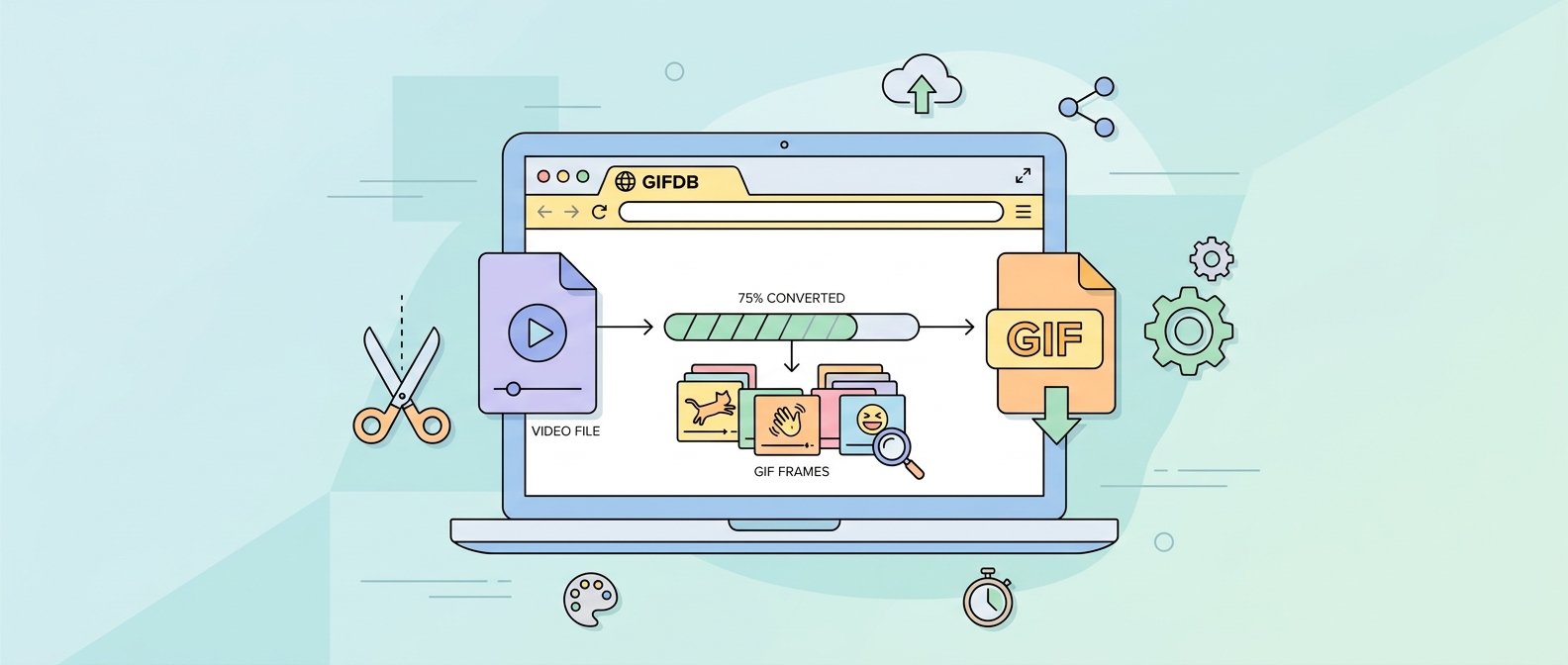
GIFDB MP4 to GIF Converter
The GIFDB MP4 to GIF converter is built for speed and simplicity. Upload your video, set trim points, choose resolution, convert, download. It handles MP4, MOV, and WebM formats and produces well-optimized GIFs without requiring any configuration. The interface is clean and works on both desktop and mobile browsers. Best for: quick conversions when you want a good result without tweaking settings.
Ezgif
Ezgif.com is the most feature-rich free browser tool for GIF work. The Video to GIF tab accepts MP4, WebM, AVI, FLV, MOV, and other formats. You can set the start and end time in exact seconds, choose frame rate (10, 15, 20, or 25 fps), set output dimensions, and choose between different color palette options. Ezgif also has separate tools for optimizing, resizing, reversing, cropping, adding text, and combining GIFs — it is essentially a complete GIF editing suite in a browser. Best for: when you need precise control over output settings or want to edit a GIF after creation.
GIPHY Create
GIPHY's creation tool at giphy.com/create accepts video file uploads and YouTube URLs. It is designed for casual GIF creation with social sharing in mind — it adds a GIPHY watermark by default (optional) and makes it easy to share directly to social platforms. The trimming and effect tools are simpler than Ezgif. Best for: creating GIFs you want to share via GIPHY's platform or search network, or when you want the social distribution aspect built in.
CloudConvert
CloudConvert supports a huge range of file format conversions including video to GIF. It is more technically capable than most browser tools — it supports custom frame rate, resolution, and loop settings — and it runs on cloud servers so large files process faster than in browser-based tools. There is a free tier with monthly conversion limits. Best for: high-quality conversions of large files, or when you need exact technical specifications.
FFmpeg (Command Line)
FFmpeg is the professional's choice — free, open-source, and available on every operating system. It produces the highest quality GIFs of any tool when used with proper settings (two-pass palette generation). The learning curve is real, but once you have the commands figured out, it is faster and more powerful than any GUI tool. Best for: batch conversions, scriptable workflows, or when quality matters more than ease of use.
Adobe Express and Canva
Both Adobe Express and Canva have video-to-GIF features that prioritize ease of use. They are less precise than dedicated tools but integrate well into design workflows. If you are already using either platform for design work, the built-in GIF export saves switching between applications. Best for: creating GIFs as part of a design or marketing project within a tool you already use.
Choosing the Right Tool
For most people, the GIFDB converter and Ezgif cover every use case. Use the GIFDB converter for fast, clean results. Use Ezgif when you need to fine-tune settings or edit the GIF after creation. For the full context on downloading source videos before converting, the main guide is at download videos for GIFs. And for creating GIFs from scratch rather than converting existing video, the GIFDB GIF maker is the direct route.