

TikTok to GIF: Complete Conversion Guide
TikTok is arguably the best source of GIF-worthy content on the internet right now. The platform's format — short, energetic, expressive — maps directly to what makes a great GIF. Here is the complete pipeline from finding a TikTok clip to sharing a polished GIF.
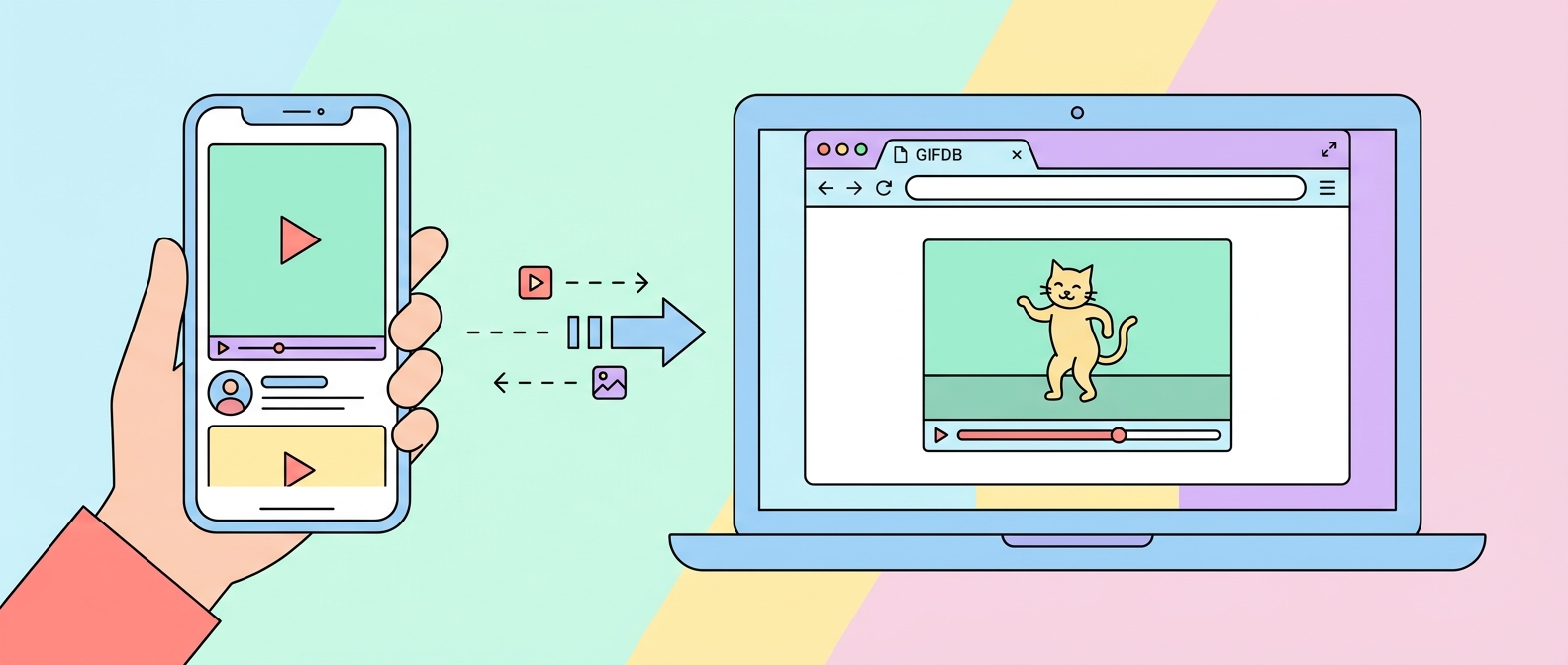
Step 1: Find Your Clip
Scroll through TikTok until you see the video you want. For the best GIFs, look for clips with a clear, repeatable moment — a reaction, a punchline, a dance move, a visual gag. Clips where the interesting thing happens early and the video is under 30 seconds are the easiest to work with. Copy the video's URL by tapping Share and then Copy Link.
Step 2: Download the TikTok Video
Open the GIFDB TikTok downloader in your browser. Paste the TikTok URL into the input field and tap Download. The tool fetches the video from TikTok without the watermark and saves it as an MP4 to your device. The download takes a few seconds for most videos. Alternatively, tools like SnapTik and SSSTikTok work the same way if you want a backup option.
Step 3: Identify the GIF Window
Play the downloaded video and note the exact start and end times of the moment you want. For a 3-second GIF, you might be targeting something like seconds 4–7 of a 15-second video. Having this range in mind before you open the converter saves time. The best GIF windows usually have a clear beginning (the setup) and a clear peak (the punchline or action) that can loop back to the beginning without an obvious jump.
Step 4: Convert to GIF
Open the MP4 to GIF converter, upload the MP4, and drag the timeline handles to your start and end points. Set resolution to 480p for a file that loads fast and looks good in messaging apps. If the content has fine detail — text, facial expressions — consider 720p for sharper results at the cost of a larger file. Click Convert and download.
Step 5: Verify and Share
Open the GIF in a browser tab to confirm the loop plays cleanly and the timing feels right. If the loop has an awkward jump at the end — a common issue — go back to the converter and adjust the end point by a fraction of a second. Once the loop feels natural, the GIF is ready to share. Post it to Twitter, send it in Discord, add it to a message — TikTok-sourced GIFs tend to perform extremely well because the content was already engineered to be engaging.
For the full guide on all social video downloads, see the main page at download videos for GIFs. For downloading specifically from Twitter to create GIFs, the dedicated guide is at Twitter to GIF. And for more TikTok-specific downloading details, see how to download TikTok videos.